To safely update WordPress plugins, treat each update as a change to a working business system, not just a button to click. A plugin can affect forms, payments, logins, downloads, or connections to other tools. A careful process helps you catch compatibility problems before customers do and gives your team a way to recover if something goes wrong.
The practical workflow is to review the update, confirm a usable backup, test on a staging site when possible, make a controlled change, and check the business functions that matter afterward.
Review the update before applying it
Start by checking which plugins have updates available and whether the site is behaving normally. Read the plugin’s update notes or changelog, if available. Look for changes that relate to features your business uses, fixes for known issues, or compatibility information. If the update notes raise questions, check with the plugin provider or the person responsible for your website before proceeding.
Also note what is installed on the site and who manages it. A plugin may connect to a payment processor, scheduling tool, email service, or another business system. Knowing which functions depend on it makes it easier to choose what to test and whom to contact if the update causes a problem.
Confirm you have a restorable backup
Before changing plugins, confirm that a recent backup exists and that you know how to restore it. For a WordPress site, a full backup should include both the website files and the database. Files can include themes, plugins, and uploaded media. The database contains content and site settings, among other information. Having only one part may not be enough to bring the site back to its previous working state.
Do not rely only on a message saying that a backup completed. Confirm where the backup is stored, who has permission to access it, and who would perform the restoration. If the restoration process has never been checked, ask the person or provider responsible for the site how they verify that a backup can be used.
Consider what may have changed since the backup was made. A restore could remove newer site content or business activity, such as form submissions or orders. Make sure the person leading the update understands how to preserve or account for recent changes before restoring an earlier copy.
For more on evaluating backup arrangements, see what to consider when choosing a backup provider.
Test on staging when possible
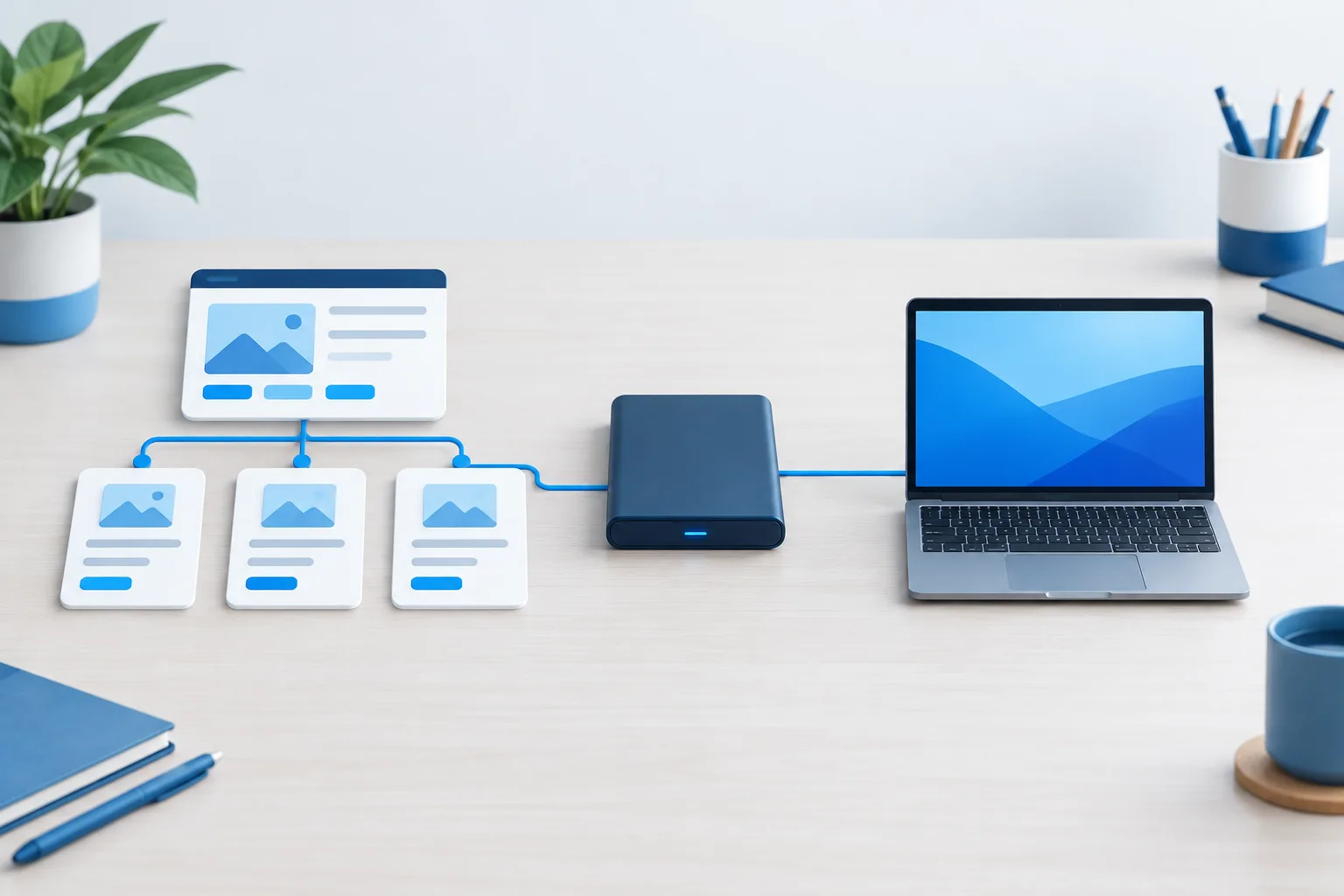
A staging site is a separate copy of the website where you can try changes without making them directly on the live site. Ideally, it reflects the live site closely enough to test the plugin’s interactions with the current theme, other plugins, and key business functions.
Before testing, check that the staging copy is current and that it does not send real customer messages, process real payments, or expose private information. Keep access limited to people who need it. After updating the plugin on staging, look for visible errors and test the workflows that rely on the plugin. A homepage that loads correctly is not proof that the whole site works.
For example, check whether a contact form submits and reaches the right inbox, an appointment request completes, a customer can sign in, and important downloads open. If the site takes payments or connects to another service, use an appropriate test mode and confirm the integration’s behavior without creating unintended live activity.
If you do not have a staging site, do not treat a backup as a substitute for testing. Plan a quiet maintenance window, confirm the backup and recovery steps first, and make the change when someone responsible can check the site and respond.
Update in a controlled way
When testing is complete, make the live change deliberately. Avoid combining plugin updates with unrelated site changes, since that makes it harder to identify what caused a problem. For a business-critical site, updating plugins in smaller groups, or one at a time when practical, can help narrow down the source of an issue. Keep a simple record of what changed and when.
Use the same basic approach for automatic updates. Automation can reduce the need to remember routine maintenance, but it does not remove the need to decide which plugins are suitable for it, monitor the site, and know how to respond to a failure. Consider the importance of the plugin, the site’s testing and backup arrangements, and whether someone will notice a problem promptly.
Check the live site after the update
After the update, check more than the homepage. Test the functions customers and staff depend on, such as:
- Contact, appointment, and other important forms
- Payments or checkout, where applicable
- Account login and account-related pages
- Downloads, search, and other plugin-powered features
- Messages or notifications that should reach staff or customers
- Connections to external services used by the site
Look for error messages, missing page elements, unusual behavior, or a noticeable slowdown. If a function fails, write down what you observed and when. That record can help the person investigating distinguish an update-related issue from another site problem.
Know how the business will recover
If the site breaks, pause further changes and contact the person responsible for website support. Use the agreed recovery process rather than trying multiple fixes at once. Depending on the cause, that may mean disabling the affected plugin, correcting a compatibility issue, or restoring the site from a backup. A restore should be handled carefully if the site has received new content or customer activity since the backup.
Make sure the recovery plan works even if the usual person or office is unavailable. Keep the relevant access details in an approved, secure place and identify who can make decisions about taking the site offline or restoring it. For broader planning, see business continuity planning for Northeast Florida companies. The Florida Division of Emergency Management also provides planning guidance for businesses.
Zevonix provides website management and security, along with managed IT and support services for businesses in Northeast and Central Florida. If your team needs help planning website maintenance or recovery, you can learn about IT help desk support or contact Zevonix to discuss your needs.
Frequently asked questions
Should I update WordPress plugins one at a time or all at once?
For a business-critical site, smaller, controlled batches make it easier to spot which change caused a problem. If you update several plugins together, test the site’s important functions afterward and keep a record of the changes.
Can WordPress automatically roll back a failed plugin update?
Some WordPress setups can attempt to restore a plugin after an update failure, but do not assume that this will protect every site or every kind of problem. Confirm what your setup supports and keep a separate, restorable backup and recovery process.
How often should a business update its plugins?
There is no single schedule that fits every site. Review available updates regularly, pay attention to update notes, and plan maintenance around your backup, testing, and support arrangements. Avoid leaving plugin maintenance unattended.
Can I use automatic plugin updates on a business website?
They may suit some plugins, but decide selectively. Consider how important the plugin is, whether updates can be tested, and how quickly someone would notice and respond if a customer-facing function stopped working.
Make plugin maintenance a planned change
A safer update process connects the change to a verified backup, a useful test environment, and a clear recovery plan. Start by documenting who owns each step and which customer-facing functions must be checked. If you would like help reviewing website maintenance and recovery needs, contact Zevonix.